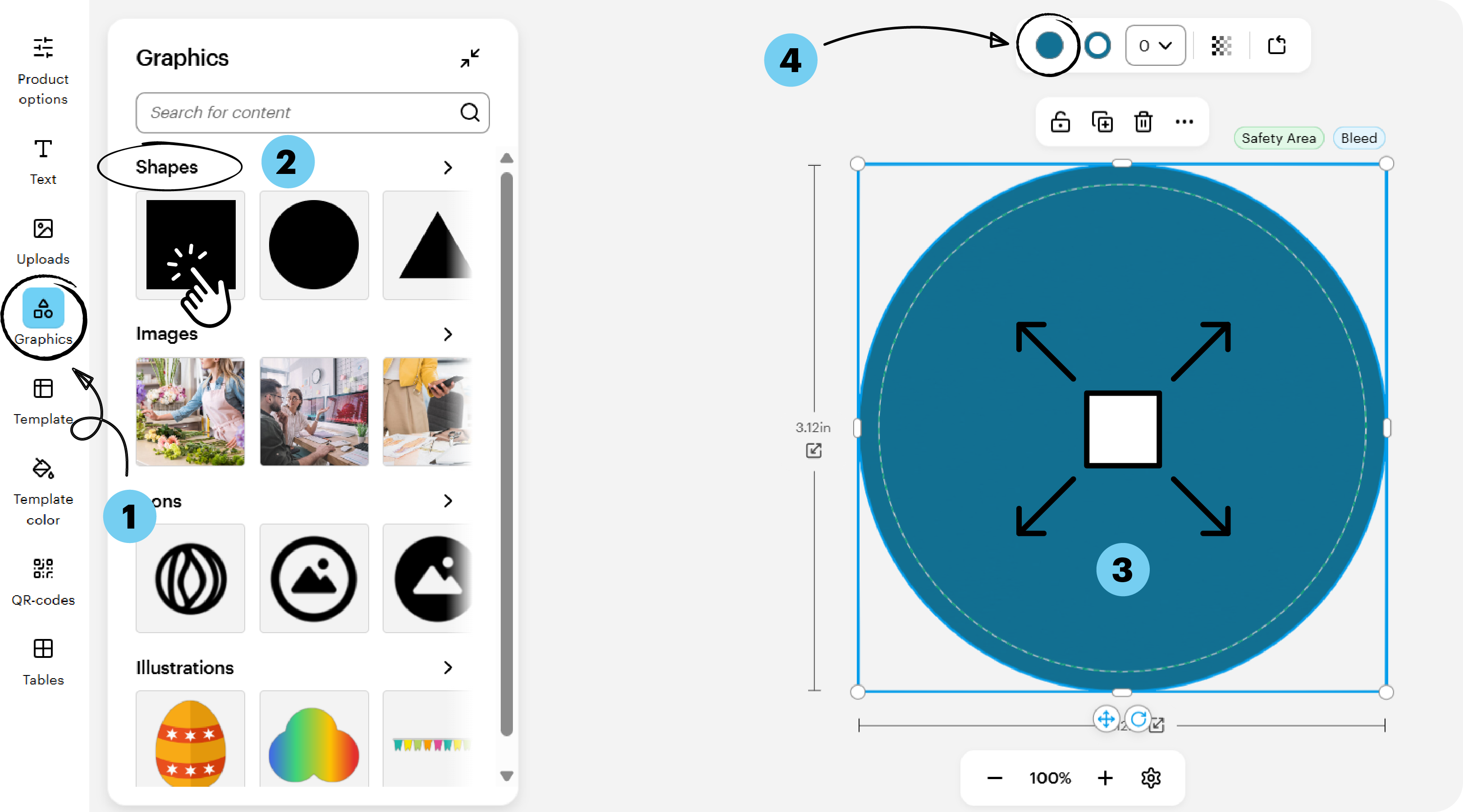
Steps to change the color of a background
1
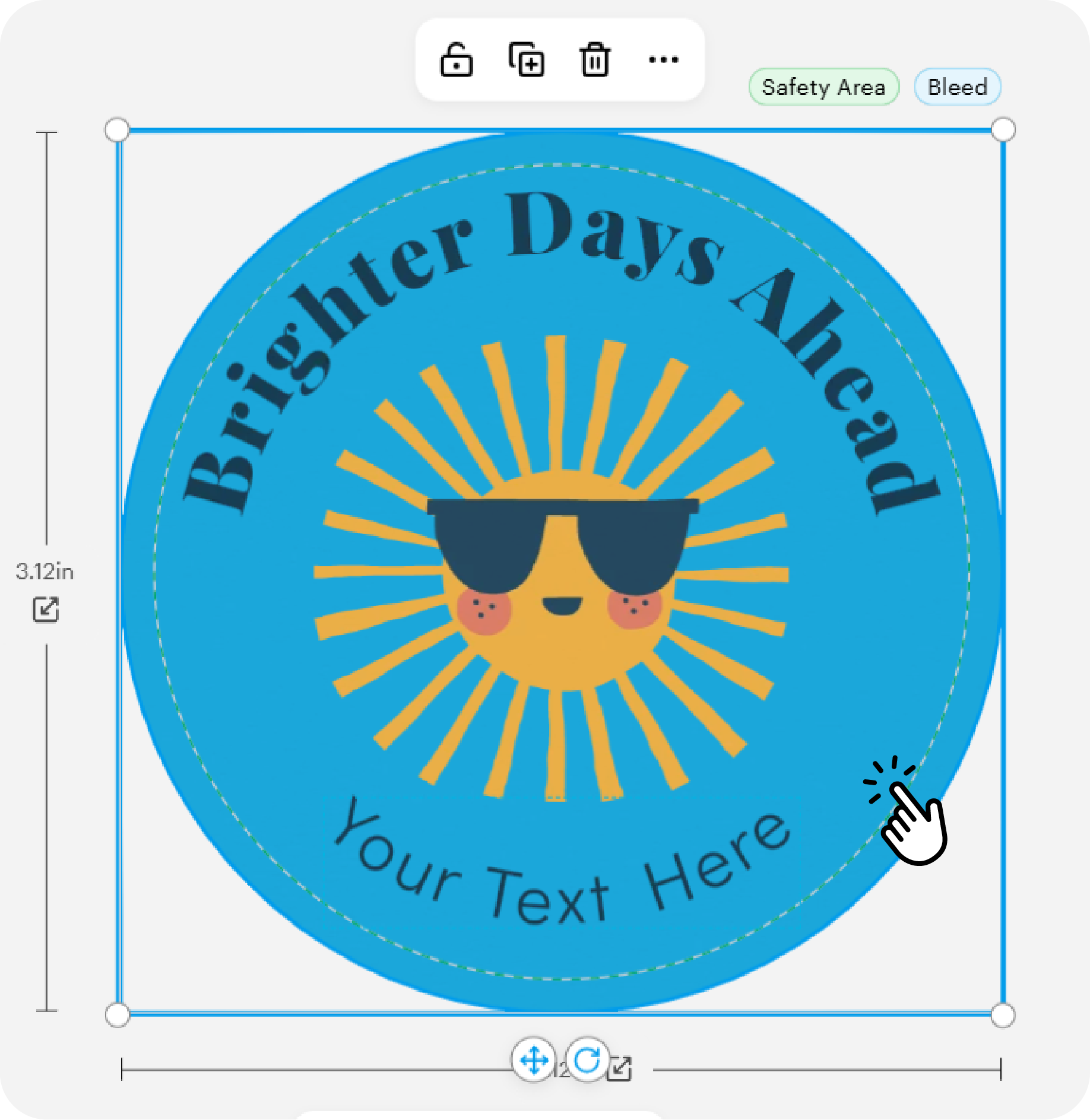
Select the background
You'll know it's selected when a blue outline appears around it.
2
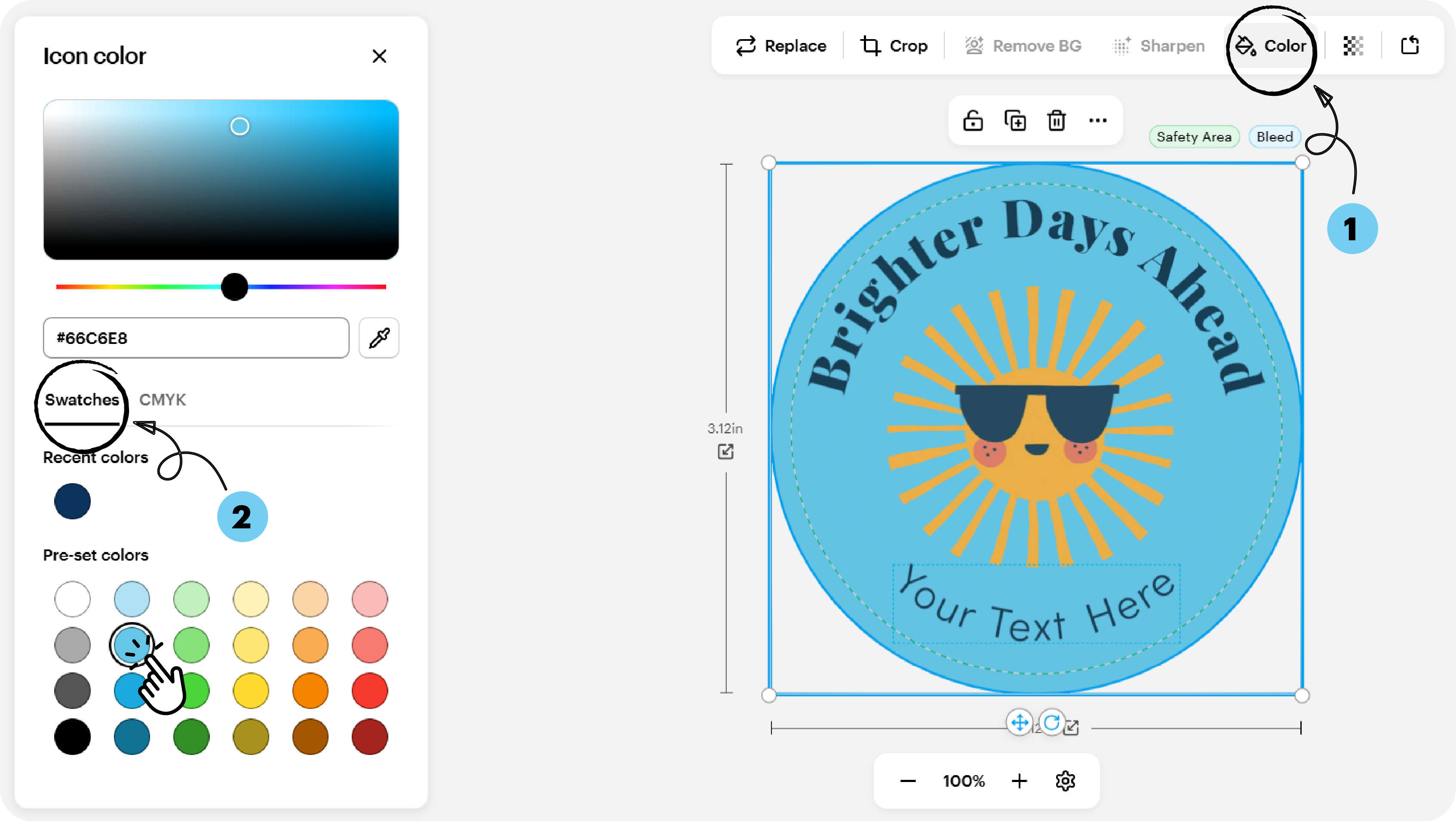
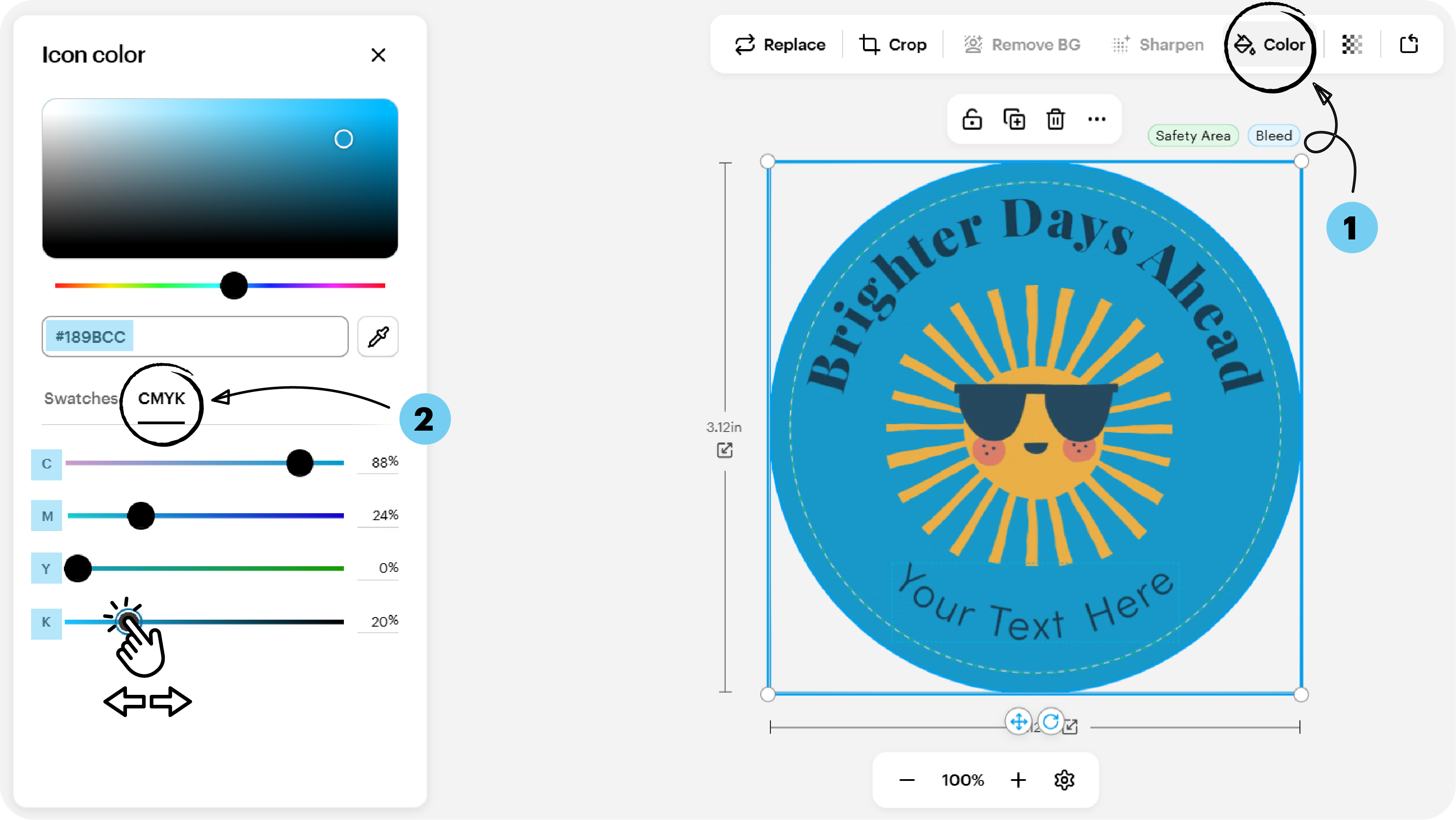
Open the Color option
From the toolbar, select Color to open the color settings.

3
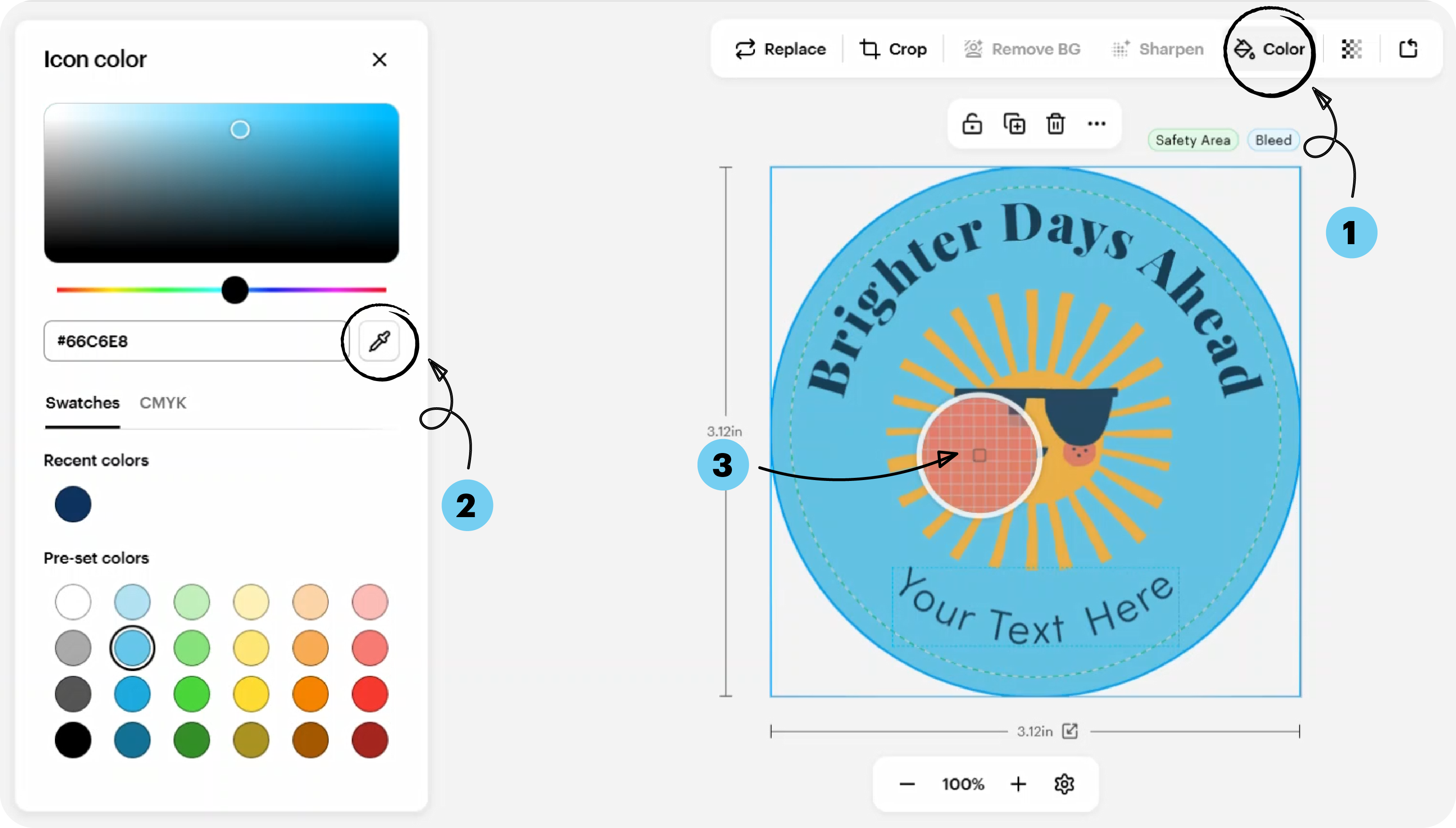
Choose how you want to change the color
Select a color from the color palette
Use the eyedropper tool to match a color from your design
Enter a custom color or adjust the CMYK values
What else you can do
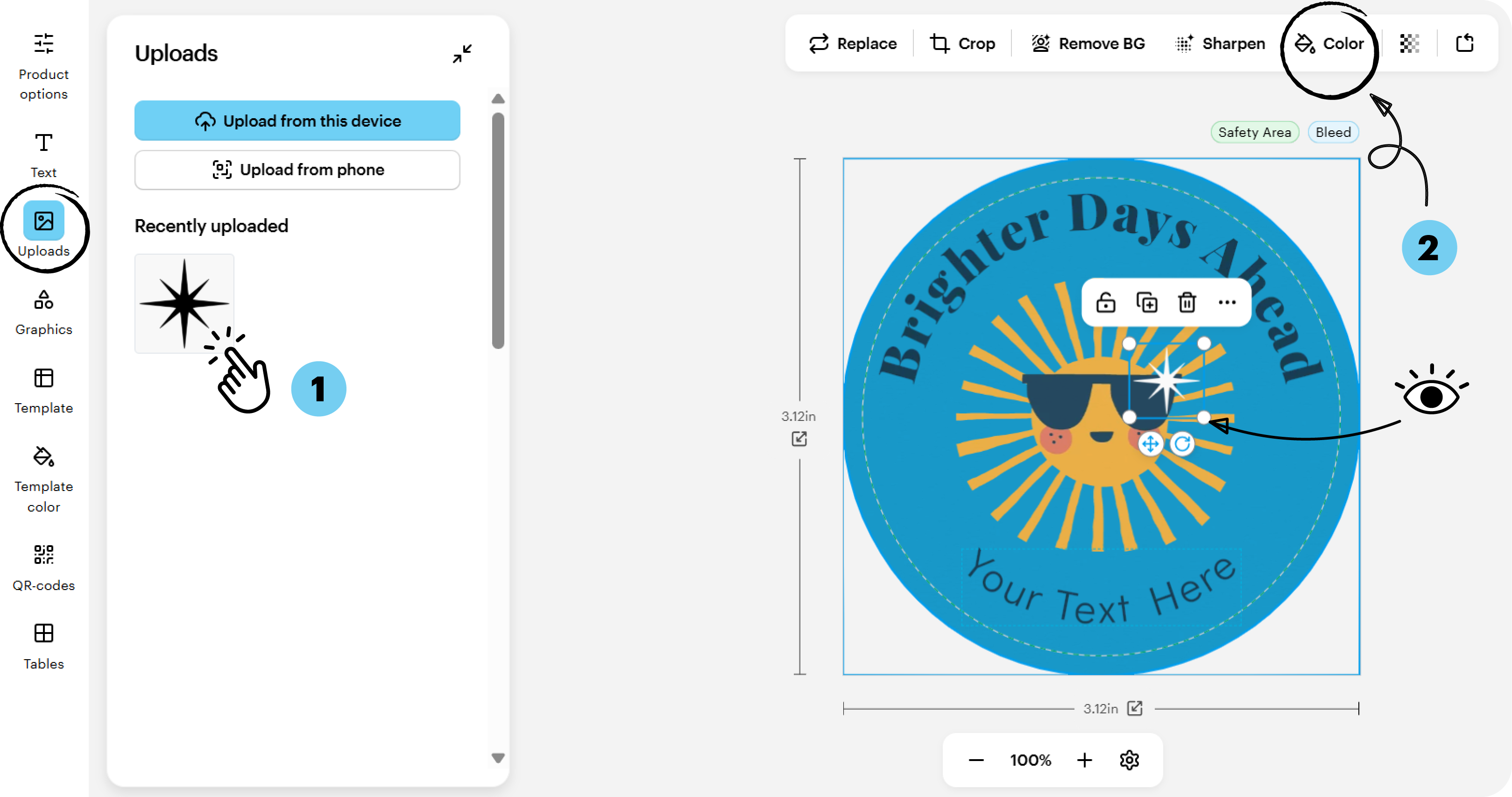
You can use the Color option to edit the overall appearance of an uploaded image.
2. If you’re designing from scratch, you can add a background color using the Shapes tool.